Script:
| ROW | AUDIO | ON-SCREEN ACTIVITY | STORYBOARD |
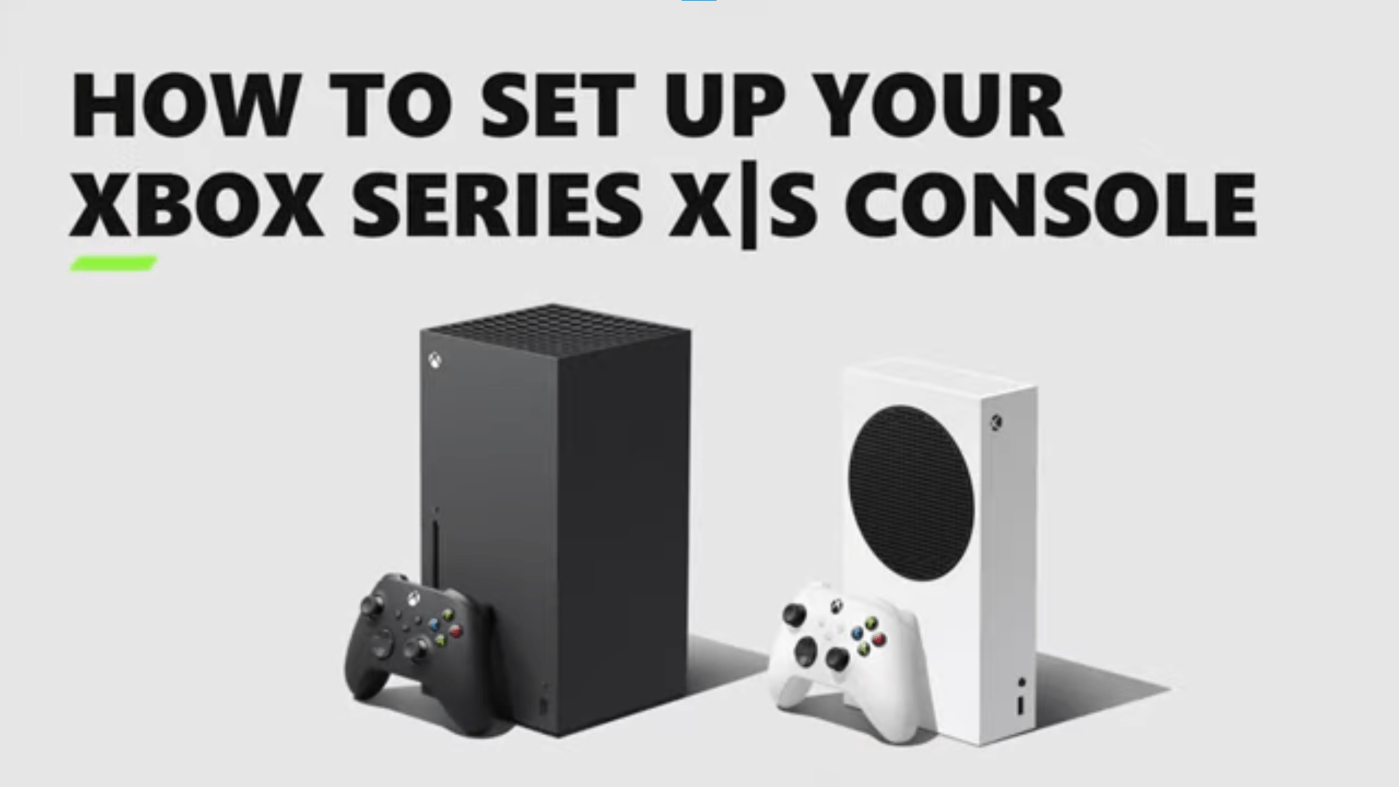
| 1 | INTRO (Title card): How to set up your Xbox Series X|S console | ||
| 2 | Have a new Xbox Series X or S? Let’s get you up and running. | ACTION: Side by side product shots of consoles. Highlight each to match VO. | FPO 1 |
| 3 | Put your console on a stable, well-ventilated, relatively cool surface. | TEXT: Put your console on a stable, well-ventilated, cool surface ACTION: Highlight console on image with green square. | FPO 2 |
| 3b | – Make sure your console is away from a direct heat source – It’s not in an enclosed cabinet – The vents are not blocked We recommend 4 to 6 inches clearance on all sides. | TEXT IN GRAPHIC: – Make sure your console is away from a direct heat source – It’s not in an enclosed cabinet – The vents are not blocked – We recommend 4-6 inches clearance on all sides ACTION: Transition to shot w/ device renders of both consoles Copy slides in frame, sync w/VO Vents are highlighted with Xbox green shading, sync w/VO Recommended clearance illustrated, sync w/VO (see Ventilation.gif mockup) | FPO 3 |
| 4 | Then, connect your console to power and to your TV. Make sure you use the High Speed or Ultra High Speed HDMI cable that came with your console to guarantee image performance and quality. | TEXT: Connect your console to power and to your TV [flip] Use the HDMI cable that came with your console to guarantee image performance and quality ACTION: Highlight the power port on the console and cord, then the HDMI port and cord. Sync highlights w/VO | FPO 4 |
| 5 | Now press the Xbox button to power on your console. | TEXT: Press the Xbox button to power on your console ACTION: Transition to image with both consoles. Highlight the Xbox buttons on both consoles with a green circle. | FPO 5 |
| 6 | When prompted, open the Xbox app on your mobile device to complete setup. If you don’t have the app, you can download it from the Google Play or Apple App stores, or just setup your console by following the on-screen instructions. | TEXT: Open the Xbox app on your mobile device to complete setup [flip] If you don’t have the app, you can download it from Google Play or Apple App Stores [flip] Or setup your console by following on-screen instructions ACTION: Transition to on-screen prompt. Slide in phone w/ Google Play & App Store buttons | FPO 6 |
| 7 | In the app, select Set up console. | TEXT: Select Set up console ACTION: Zoom in to phone screen so it is fullscreen. Transition to home screen in app. Highlight Set up console button w/green box Note to editor: Capture with appropriate fictitious names or mask with fictitious names | Need screenshot – Set up console on home screen FPO 7 – not approved to use |
| 7b | If you don’t see this option, select the console icon. | TEXT: If you don’t see this option, select the console icon ACTION: Zoom in and highlight console icon. Select it using touch-cursor. | FPO 8 |
| 8 | Then select Set up a console. | TEXT: Select Set up a console ACTION: Zoom slightly. Select Set up a console using touch-cursor | FPO 9 |
| 9 | Select Set up a new console. | TEXT: Select Set up a new console ACTION: Zoom slightly to make text more readable. Select Set up a new console | FPO 10 |
| 10 | Enter the code shown on your TV screen, then select Connect to console. | TEXT: Enter the code shown on your TV screen, then select Connect to console. ACTION: Slide down render of TV, highlight code, “copy” code into app, select Connect to console – Or – Enter a code. Select Connect to console. | FPO 11 |
| 11 | Follow the instructions in the Xbox app to: Verify or update your language and location… | TEXT: Follow the instructions to verify/update your language and location ACTION: Walk through setup, preferably with video captures but screenshot could also work | Need screenshots or captures of this process |
| 12 | Connect to Wi-Fi… | TEXT: Connect to WiFi ACTION: Walk through setup, preferably with video captures but screenshots could also work | Need screenshots or captures of this process |
| 13 | Update your console… | TEXT: Update your console ACTION: Walk through setup, preferably with video captures but screenshots could also work | Need screenshots or captures of this process |
| 14 | Sign in… | TEXT: Sign in ACTION: Walk through setup, preferably with video captures but screenshots could also work | Need screenshots or captures of this process |
| 15 | And customize your settings. | TEXT: Customize your settings ACTION: Walk through setup, preferably with video captures but screenshots could also work. If we have video, show interaction with 1-2 settings. | Need screenshots or captures of this process |
| 16 | Your console is set up. Now connect the controller. | TEXT: Your console is set up [add] Connect your controller ACTION: Hopefully there’s a confirmation visual on the phone/console screen to show here? | Need screenshots/captures |
| 17 | Press the pair buttons on both the controller and the console. They’re located here on the Xbox Series X… | TEXT: Press the pair buttons on the controller and the console ACTION: Transition to renders of Series X so both pair buttons are visible. Highlight buttons on “located” in VO | FPO 12 |
| 18 | And here on the Xbox Series S. (Pro tip: Don’t forget the batteries.) | TEXT: [keep the Then press the pair buttons copy box] [flip] Pro tip: Don’t forget the batteries ACTION: Slide in image of Series S console/controller pair buttons. Highlight buttons. | FPO 13 |
| 19 | That’s it! Your Xbox is ready to play. | ACTION Show screen shot of landing experience on Series X/S | Need screen captures |
| 20 | Need more help? Go to xbox.com, slash, setup | TEXT IN IMAGE: Need more help, Go to xbox.com/setup | |
| 21 | OUTRO: | Need Xbox logo/wrapper |
 Jessica Williams